Set up Manager.io Customer Alerts from the beginning.
Start inside the Manager.io business by creating the Customer Alerts Custom Button, then connect the business and complete customer notification settings.
Open Settings in the Manager.io business
Open the specific Manager.io business you want to connect. Go to Settings → Custom Buttons. In some Manager.io versions this area may previously have been described as Extensions.
Create the Custom Button inside the correct Manager business because each connected business is treated as a separate Customer Alerts tenant.
Create the “Manager.io Customer Alerts” Custom Button
Add a new Custom Button and use the following values:
https://customer-portal.adib.com.ng/manager-custom-buttonsummary-viewSave the Custom Button. The summary-view placement makes the button available from the Manager.io Summary view, which is the normal starting point for Customer Alerts.
Open the Custom Button from the Manager.io Summary page
Return to the Manager.io Summary page and open Manager.io Customer Alerts.
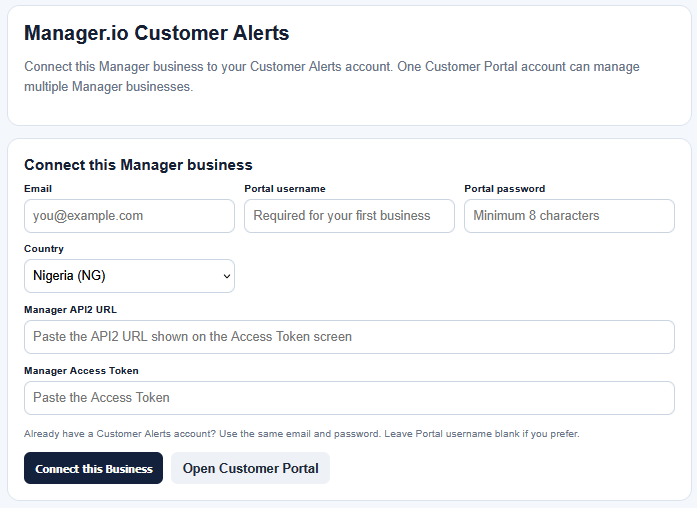
If the business is already connected, use Open Customer Portal. For a first-time connection, expand Connect or reconnect this Manager business.
Create or reuse your Customer Portal account
For the first Manager business under your account:
- Enter your Email address.
- Choose a Portal username.
- Create a Portal password of at least 8 characters.
- Select the business country.
For a second or later Manager business, use the same Email address and the same Portal password. You can leave Portal username blank. The new business will be added to the same My Businesses account instead of creating another portal account.
Create Manager API2 access and copy the connection details
In Manager.io, create or open the business's API2 access/token screen. You will need both:
- The Manager API2 URL shown for that Manager installation.
- The Manager Access Token for the business.
Connect the Manager business
Paste the Manager API2 URL and Manager Access Token into the Customer Alerts connection form, then choose Connect this Business.
Customer Alerts verifies the Manager connection before completing onboarding. The same Manager API2 host can contain more than one business; each business is identified separately.
Confirm notification fields and historical protection
Customer Alerts creates or reuses the following Customer custom fields:
- Customer Alerts Mobile — mobile number used for SMS.
- SMS Alerts — customer-level SMS permission.
- Email Alerts — customer-level Email permission.
The setup process also protects existing transaction history for the currently supported “created” notification detectors. This prevents old invoices, receipts, payments, credit notes or journal entries from being mistaken for newly created transactions.
Set up each customer that should receive alerts
Open the customer in Manager.io and complete the relevant contact/preferences:
- Enter the customer's normal Manager.io Email address for Email notifications.
- Enter Customer Alerts Mobile for SMS. For Nigeria, use international format where possible, for example
+2348035674941. - Tick Email Alerts if the customer should receive Email.
- Tick SMS Alerts if the customer should receive SMS.
Both the business notification rule and the customer-level preference must allow a channel before a message can be generated.
Open the Customer Portal and select the business
Use https://customer-portal.adib.com.ng/portal or the Open Customer Portal button from Manager.io. Sign in with your username or Email and Portal password.
If your account owns multiple businesses, choose the correct business from My Businesses before changing rules.
Enable the notification rules you want
Under Customer Notification Rules, enable the event and select Email, SMS, or both. The currently supported notification types are:
- Sales Invoice Created
- Receipt Created
- Payment Created
- Credit Note Created
- Journal Entry Created
- Customer Balance Reminder
Choose Save Notification Rules after making changes.
Test with a genuinely new Manager transaction
Create a new supported transaction for a customer whose notification preferences are enabled. Customer Alerts checks for new events automatically and prepares eligible Email/SMS deliveries.
Email and SMS delivery usually begins on an automatic processing cycle. Final delivery time can also depend on Amazon SES, BulkSMSNigeria and the recipient's Email/mobile network.
Customer Balance Reminder
Balance reminders are scheduled separately from new-transaction alerts. Set the reminder frequency and minimum outstanding Accounts Receivable balance in the selected business. Enabling the reminder does not immediately send messages to historical customers; the first automatic run is scheduled after the selected interval.
Adding another Manager.io business later
Repeat Steps 1–6 from the other Manager business. Use the same Customer Portal Email and password. After connection, the additional business will appear under My Businesses. Its subscription, Email/SMS balances, notification rules and transaction history remain separate from your other businesses.
Already connected?
Sign in once and use My Businesses to switch between connected Manager.io businesses without logging in again.
Open Customer Portal